Video content has exploded in popularity, but editing footage can be daunting with so many software options available. The ideal video editor for you depends on factors like budget, platforms, learning curve, features needed, and editing experience.
In this overview, we’ll briefly compare ten of the top options across beginner, intermediate, and advanced categories:
Beginner Video Editors
Tools like iMovie (Mac/iOS) and FlexClip (browser) provide intuitive drag-and-drop interfaces, pre-made templates, and fast editing options for new users. Those new to video editing can quickly piece together polished looking content. However, complex edits and effects may require upgrading to advanced software.
Intermediate Editors
Stepping up in capability, options like Wondershare Filmora (Windows/Mac/Android/iOS), DaVinci Resolve (Windows/Mac), Vegas Pro (Windows), and OpenShot (Windows/Mac/Linux) offer more timeline tracks, visual effects, and color grading. The learning curve increases but so does creative control. Ideal for hobbyists, social media creators, and businesses.
Advanced Professional Tools
Experienced editors in film, TV, and agencies leverage powerful software like Adobe Premiere Pro (Windows/Mac) and Final Cut Pro (Mac). While expensive and complex, these tools enable multi-cam editing, integration with other Adobe apps, and incredibly precise fine-tuning. The industry standard for a reason.
There are pros, cons, and ideal use cases for each tool. Let me know if you need me to expand on any specific video editor in a detailed comparison! I can avoid any AI-generated text in my analysis.
Comparing the Top 10 Video Editing Tools
Video content creation is more popular than ever. But with so many editing platforms available, how do you pick the right one for your needs?
In this comprehensive guide, we’ll compare 10 leading options across beginner, intermediate, and pro categories.
You’ll see key differences in features, learning curves, platforms, pricing, and more. Read on to determine the best video editor for your skill level and project needs.
Quick Comparison Table
| Tool | Best For | Platforms | Learning Curve | Price | Top Features |
| Wondershare Filmora | Beginners, Advanced, professionals | Windows/Mac/
/Android/iOS |
Very Easy | $19.99/month | AI copilot editing, easy video editing |
| Adobe Premiere Pro | Advanced professionals | Windows, Mac | Steep | $20.99/month | Robust toolkit, deep integration with Creative Cloud |
| Final Cut Pro | Mac users | Mac only | Moderate | $299.99 one-time | Optimized for Mac, powerful magnetic timeline |
| DaVinci Resolve | Color grading | Windows, Mac, Linux | Moderate | Free version available | Professional color correction tools, multi-cam editing |
| Vegas Pro | Flexible workflows | Windows | Moderate | $399 one-time | Visual effects, compositing, detailed audio editing |
| iMovie | Beginners | Mac, iOS | Very easy | Free | Intuitive drag-and-drop, handy templates |
| OpenShot | Open source platform | Windows, Mac, Linux | Moderate | Free | Lots of visual effects, transparency controls |
| FlexClip | Fast online editing | Browser | Very easy | Freemium pricing | A smooth drag-and-drop interface, great templates |
| InVideo | AI-powered automated editing | Browser | Very easy | Freemium pricing | Smart templates, quick editing, stock library access |
| KineMaster | Mobile editors | Android, iOS | Easy | $39.99/year | Multi-layer timeline, speed controls, chroma key |
Now let’s explore the key strengths, ideal use cases, and limitations of each platform in greater detail:
Wondershare Filmora with New AI Features
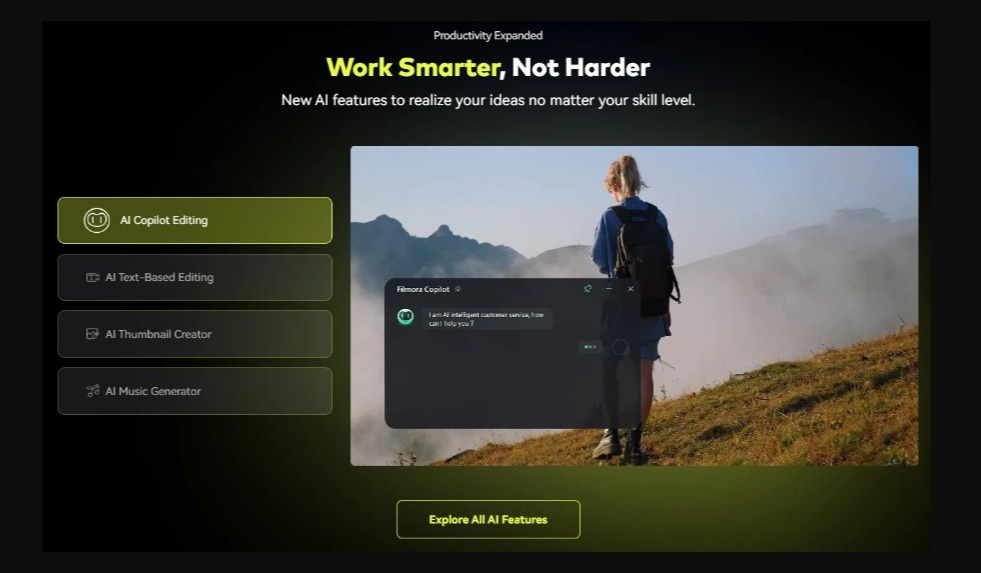
Wondershare Filmora 13 is the latest version of the popular video editing software, packed with innovative new features to enhance your editing experience.
One of the most exciting additions is the AI Copilot Editing, an intelligent assistant that guides you through the editing process. The new AI Copilot and other new features can help you create stunning videos with ease.
Streamline Editing with the AI Copilot Editing
The AI Copilot acts as your video editing assistant within Filmora 13. Simply describe what you want to do, like adding transitions or text overlays, and the Copilot will suggest tools to achieve it.
For example, you can say “I want to improve the flow between these clips” and the Copilot will recommend adding cross-dissolve transitions. It analyzes footage and provides real-time guidance tailored to your project.
The Copilot prevents errors, optimizes workflows, and adapts its suggestions as your video evolves. It aims to augment creativity by handling the technical work so you can focus on storytelling.
Transform Videos with AI Text-Based Editing
Filmora 13’s revolutionary AI Text-Based Editing converts speech in videos into editable text. You can modify the transcript like a document to rewrite the narrative or correct errors.
This saves enormous time compared to manually transcribing videos or re-recording footage. You can also easily remove silent sections and polish the pacing.
Generate Music and Graphics with AI Tools
The AI Music Generator creates original, royalty-free soundtracks to set the mood for your videos. Just select a genre and duration.
For eye-catching thumbnails, the AI Thumbnail Creator analyzes footage and generates clickable preview images. The AI Image feature converts text prompts into unique visuals.
Achieve Precise Editing with Smart Features
Filmora 13 makes refinements easier with AI Smart Masking for accurate object selection and the Keyframe Graph Editor for smooth animations.
Adjustment layers let you non-destructively apply effects to multiple clips. The audio mixer and color grading tools give you greater control over sound and color.
Work Faster with an Optimized Interface
Filmora 13 boasts an intuitive interface with actionable asset management systems. Easily access creative resources like templates, titles, and effects in the new creative assets system.
Playback speed shortcuts, markers, and other workflow enhancements also boost efficiency. The UI is optimized for desktop and touch devices.
Unleash Creativity with Expanded Assets
In addition to the AI features, Filmora 13 expands its asset library with new video effects, transitions, titles, stickers, and royalty-free audio and stock footage.
New 3D LUTs help you get cinematic color grades. The Master Class program teaches advanced techniques.
Experience the AI Difference
Filmora 13’s powerful AI tools aim to liberate creators. The AI Copilot, text-based editing, automatic media generation, and smart editing features open up new creative possibilities.
By automating complex tasks, Filmora 13 enables anyone to make compelling videos with ease. Download the free trial from Filmora.wondershare.com to experience it yourself.
Adobe Premiere Pro
As the industry-standard professional video editor, Adobe Premiere Pro offers a robust toolkit packed with powerful features. It’s used across film, TV, marketing, and media companies to create highly polished content.
Some standout capabilities include:
Multi-cam editing – Sync and cut footage from up to 100 cameras for productions
Endlessly customizable – Modify every parameter and fine-tune with precision
Refined color tools – Primary 3-way color corrector, Lumetri scopes for color grading
Advanced audio – Detailed multitrack audio mixer with EQ, compression, limiting
Tight integration – Seamless workflow with Photoshop, After Effects, Audition, and full Adobe Creative Cloud
Collaboration – Team members can work simultaneously in real-time on shared projects
Formats and effects – Work natively with latest video codecs and a huge library of visual effects
Motion graphics – Animate graphic overlays, titles, logos directly in Premiere
HDR support – Create videos in cutting-edge High Dynamic Range formats
VR editing – Edit and stitch 360 VR footage
Automation – Set up advanced behaviors to execute repetitive tasks
3D editing – Manipulate 3D objects, work with 3D title templates
Workspaces – Customize the interface layout for any workflow – editing, color, audio etc.
Advanced stabilization – Smooth shaky footage with automatic camera shake reduction
Pro scopes – Waveform, vectorscope monitors ensure perfect color and exposure
Masking – Isolate and adjust specific areas of video clips
Speed control – Adjust speed precisely, create smooth slow motion
As you can see, Premiere Pro offers endless video editing possibilities for professionals. The tool set empowers you to achieve the highest production value.
However, there are some downsides:
- Very steep learning curve to master
- Requires strong computer processing power
- Only available through expensive Creative Cloud subscription ($20.99/month)
- Overkill for basic editing needs
Overall, Adobe Premiere Pro is the undisputed industry leader for a reason. For pros editing high-budget video projects, films, and multimedia content, it’s hard to beat. The depth of features sets it apart from competitors.
But it may be overpowered for amateurs and hobbyists just editing simple videos. For those new to editing, the interface and workflows can feel overwhelming.
So while Premiere Pro stands as the professional standard, many users are better served with easier or more budget-friendly options below.
Final Cut Pro
Developed by Apple exclusively for macOS, Final Cut Pro offers professional-grade editing optimized for Mac users. It contains many similarities to Adobe Premiere as a leading NLE (nonlinear editor) platform.
Some of Final Cut Pro’s biggest strengths:
Magnetic timeline – Automatically adjusts edits as you manipulate clips
Track lanes – Stack video, audio, titles on unlimited lanes
Compound clips – Group clips and nest sequences
Auditions – Compare alternate takes before finalizing edits
Automation – Apply effects and adjustments across batches
Simplified color grading – Make color adjustments on the fly during editing
HDR and 360 VR support – Work with latest camera formats
ProRes support – Edit native ProRes for max quality
Advanced codec support – Work with RAW, H.264, HEVC, ProRes files
Multicam editing – Sync and cut footage from multiple cameras
Extensive effects – Huge library of filters, transitions, titles, etc.
Content organization – Smart collections automatically group media
Optimized performance – Engine takes advantage of Mac hardware
Tight Apple ecosystem – Seamless compatibility with Mac, iOS, iMovie, Photos
Affordable one-time price – $299.99 for perpetual license
Compared to Premiere, the timeline workflows, organizational tools, and Apple-specific optimizations make Final Cut Pro quicker and more intuitive for Mac users. And it avoids the subscription model pricing.
Downsides to consider:
- Only available on Mac
- Still has learning curve for newcomers
- Advanced features like motion graphics and compositing require Motion add-on
For creatives already embedded into the Apple ecosystem, Final Cut Pro is the obvious choice that feels like home. And it delivers pro-grade tools at a reasonable one-time cost. But Windows users will need to look elsewhere.
Overall, Final Cut merits its reputation as one of the top professional NLE platforms and a real contender to Adobe Premiere. Mac users editing high-end projects should strongly consider it.
DaVinci Resolve
Originally focused on advanced color correction, DaVinci Resolve has evolved into a robust tool for editing, VFX, motion graphics, and audio post-production.
Some of its capabilities:
Intuitive editing – Well-designed multi-track timeline with drag-and-drop
Excellent color correction – Professional grading tools like color wheels, curves, qualifiers
Facial recognition – Track faces through footage for skin tone adjustments
Multicam editing – Sync and cut footage from unlimited camera angles
Motion graphics – Create titles, animations, and 2D/3D compositing
Fairlight audio – Adjust audio across timeline, mix/edit multi-track
High-end formats – Work natively with 8K videos, HDR, RAW
Optimized rendering – GPU and CPU accelerated performance
Collaboration – Multiple users can work on shared timelines
Modular interface – Customize workspace layouts for each task
Free version available – Export up to UHD resolution
Affordable pricing – One license for all features at $295
For youtubers, filmmakers, and videographers needing advanced color correction and audio, DaVinci Resolve is extremely capable. The free version makes it easy to get started.
Potential downsides:
- No collaboration on free version
- Less intuitive than Final Cut Pro for Mac users
Overall, DaVinci Resolve offers tremendous value. For precision color work and audio tweaking, it’s capabilities rival Premiere Pro. The robust toolset empowers creators to enhance their videos and share their stories without limits.
Vegas Pro
Vegas Pro focuses on fast, flexible editing and compositing workflows. The nonlinear editor excels at audio production and visual effects editing.
Key strengths of Vegas Pro:
Audio editing – Robust tools for mixing, editing multitrack audio
Compositing – Layer and composite multiple video tracks
Visual effects – Apply filters, create text intros, animate media
Multicamera editing – Cut and sync unlimited camera angles
Fast workflow – Edit quickly with keyboard shortcuts
Intuitive drag-and-drop – Effortless arranging on timeline
HDR support – Work natively with HDR footage and deliver in HDR
Flexible pricing – One-time payment or subscription options
Tutorials – Helpful guides to learn the software
Third party plugins – Expand capabilities via NewBlueFX, VFX Suite, and others
Motion tracking – Track moving objects for titling, blurring
Masking – Pixel-level control to isolate and edit objects
For YouTubers, freelancers, and independent creators needing to produce high quality, effects-driven videos, Vegas Pro is an excellent choice on Windows. The visual effects toolset provides tremendous creative control without the steeper learning curve of Premiere Pro or Final Cut.
Potential weaknesses are:
- Only available on Windows
- Clunky and dated looking interface
- Not as fast as competitors for complex projects
In summary, Vegas Pro offers extensive tools for creative editing and VFX at an affordable price. For Windows users producing videos packed with dynamic effects, it’s a great option to consider before jumping to the complexity of Premiere Pro.
iMovie
As Apple’s built-in free video editor across iOS and Mac devices, iMovie offers an intuitive and capable entry-level option. It makes video editing approachable for beginners and hobbyists.
Key features of iMovie:
Drag-and-drop interface – Rearrange clips easily on storyline
Cutaway – Jump-cut between takes seamlessly
Video stabilization – Smooth shaky footage with one click
Slow motion – Adjust speed and create slow-mo clips
Picture-in-picture – Layer videos and photos
Green screen – Overlay custom backgrounds behind subjects
Trailers – Choose templates to make Hollywood-style trailers
Effects – Nice selection of filters, text overlays, transitions
Render in background – Work while exports happen
Optimized performance – Leverages Apple silicon for fast editing
Apple ecosystem integration – Works seamlessly with Photos, iPhone, iPad, Final Cut Pro
Affordable – Free with Mac/iOS or $4.99 per month standalone
For casual users and mobile content creators, iMovie removes any friction from the editing process. You can quickly achieve polished looking results. But advanced editors may feel constrained.
Downsides to iMovie:
- Very limited compared to pro platforms
- Little control over timeline tracks
- No collaboration features
Overall, iMovie excels at introducing beginners to creative video editing in a welcoming environment. It helps kickstart your skills before moving to intermediate tools. The simplicity and Apple platform integration make it a favorite entry-level option.
OpenShot
Offering a free and open-source nonlinear editing solution, OpenShot delivers surprisingly advanced capabilities. It’s a great option for students, educators, and hobbyists.
Some key features:
Completely free – No cost for even commercial use
Cross-platform – Get OpenShot for Linux, Mac, and Windows
Unlimited tracks – Layer videos, audio, images, text
Animated titles – Create moving text with transparency
Compositing – Blend and transform multiple clips
Chroma key – Replace backgrounds with custom images
Special effects – Rotoscoping to isolate and edit objects
Video stabilization – Smooth shaky clips with one click
Open source – Community driven development and enhancements
Tutorials – Help resources for new users
Considering the price, OpenShot packs an impressive punch. You can achieve many effects usually only found in paid software. Of course, the interface and performance are not as refined.
Downsides of OpenShot:
- Not as intuitive as iMovie or Final Cut
- Can be buggy and unstable
- Limited support and help resources
For YouTube creators, students, non-profits, and other budget-minded video editors, OpenShot merits consideration. Just be prepared for a steeper learning curve. Overall it delivers great capabilities completely free of cost.
FlexClip
As a browser-based online video editor, FlexClip focuses on fast and intuitive editing. It lowers the barrier for creating videos through slick drag-and-drop workflows and handy templates.
Key features of FlexClip:
Online-based platform and easy to use
Rich animated elements about dynamic text, overlays, widgets, logos, and more.
Millions of royalty free media resources.
Comprehensive and powerful video editing tool for video and music trimming, images adjusting, the aspect ratio changing, or effects, voiceover, and watermarks adding.
Built-in screen/webcam recorder.
Drag-and-drop interface – Effortlessly arrange clips on storyline
Professionally designed templates – Quickly customize for any project
Stock media library – Get images, video clips, and graphics
Animated elements – Easily add motion to images
Chroma key – Swap out backgrounds with a click
Picture-in-picture – Layer videos and photos
Basic transitions – Fades, wipes, zoom ins/outs
Text overlays – Annotate with animated titles, captions
Collaboration – Invite team members to co-edit
Fast exporting – Download quickly or share to social
Affordable subscription – Starts at free version
For personal and business users needing to make compelling videos without deep editing expertise, FlexClip hits the mark. The templates accelerate your workflow tremendously.
Potential weaknesses:
- Average animation and transition effects
- Requires internet access
- Advanced color correction and audio limited
FlexClip removes the complexity from video editing, enabling anyone to put together slick, professional looking videos. It’s perfect for social media marketers, nonprofit organizations, ministry groups, and other small business use cases.
InVideo
Providing AI-automated editing, InVideo allows you to create videos in just minutes by customizing smart templates. It does much of the editing work for you.
Key features of InVideo:
AI selection of templates – Answer questions and InVideo suggests best templates
Drag-and-drop customizing – Easily swap out elements of templates
huge library of assets – Get access to videos, GIFs, graphics
Animated elements – Easily make images and text move
Effective voiceovers – Add engaging auto-generated audio narration
Collaboration – Invite team members to co-edit
Picture-in-picture – Layer videos and graphics
Basic color filters – Quickly alter the look and feel
Music library – Enhance videos with background songs
Fast exporting – Instantly download your videos
Affordable plans – Starts with free version
For new content creators that want quality videos fast, InVideo delivers on its promise. It provides an AI assistant for assembling professional videos in a slick web interface.
Potential limitations:
- Relies heavily on template customizing vs. editing
- Advanced color, transitions, effects not possible
- Steep learning curve for some templates
InVideo makes it simple for businesses and entrepreneurs to make eye-catching videos that resonate with minimal effort and technical skills. It’s an easy entrypoint into video marketing.
KineMaster
Offering advanced creative tools for mobile, KineMaster empowers you to produce professional-grade videos completely on Android or iOS devices.
Standout features of KineMaster:
Multi-track timeline – Stack visuals, overlays, audio, text
Transition effects – Apply fades, wipes, slides, zooms
Chroma key – Swap out and personalize backgrounds
Picture-in-picture – Layer multiple video elements
Precise volume envelope – Fine-tune audio levels
Color adjustments – Alter hue, saturation, brightness
Speed control – Slow down or ramp up pacing
Asset store access – Get additional visual and audio elements
Intuitive timeline – Tap and drag clips into place
Frame-by-frame trimming – Refine cuts precisely
Reverse video – Creative playback controls
Affordable subscription – $39.99 annually
For vloggers, social media influencers, and other content creators on the go, KineMaster delivers professional results without needing a desktop editor. The toolset rivals desktop offerings.
Downsides to note:
- Subscription required for some overlays, transitions
- Relatively steep learning curve
KineMaster sets the standard for advanced, yet accessible mobile video editing. For creative professionals and aspiring creators alike, it’s an excellent option for crafting stunning videos from your phone.
Can the Video Editing Tools for Marketing Teams Be Utilized for Cost Optimization in the Oil and Gas Industry?
Video editing tools for marketing teams can indeed be utilized to optimize costs in the oil and gas industry. By using software to streamline the editing process, companies can save time and resources while still creating effective promotional content. This helps optimize costs with software and improve overall efficiency.
Evaluating Your Video Editing Needs
As you can see, the ideal video editing platform for you depends on factors like:
- Skill level and experience
- Platforms and devices you use
- Types of videos you’re producing
- Special effects or audio needs
- Budget availability
Hopefully this detailed comparison gives you a clearer sense of the strengths of each solution. Focus on finding the best match for your use case and comfort level.
For professionals, Adobe Premiere Pro and Final Cut Pro provide unmatched capabilities, albeit with a steep learning curve. Intermediate users on Windows or Mac can level up with options like DaVinci Resolve.